We Tested PDF Compression on Real Files: The Numbers
Most PDF advice is vague about what compression actually achieves, so we measured it. We took three deliberately different PDFs - a photo-heavy report, a colour scan and a born-digital text document - and ran each through this site's own compressor at every target size, recording the exact figures the tool returned. Here is what really happened, including the place where the tool surprised us.
Updated 2026-06-26 · 6 min read
Measured output sizes for three sample PDFs run through this site's compressor. Each figure is the actual size the tool returned.
Sample PDF
Original
At 100KB
At 500KB
At 1MB
Photo-heavy report (4 pages)
11.06 MB
96 KB
455 KB
819 KB
Colour scanned letter (3 pages)
7.16 MB
76 KB
450 KB
855 KB
Born-digital text PDF (3 pages)
5 KB
already under
already under
already under
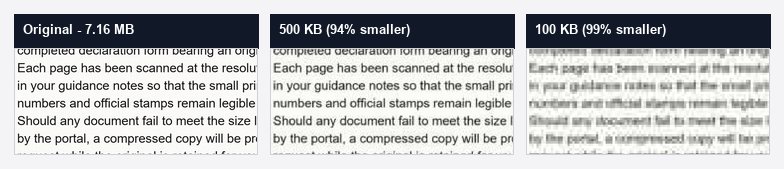
The same scanned letter at full quality, at 500KB and at 100KB. At 500KB it is essentially indistinguishable from the original; only at 100KB does the text visibly soften.
How we ran the test
We generated three PDFs that behave very differently under compression, then uploaded each to this site's own compressor and recorded the size it returned at every target. No special settings and no separate software - exactly the path a visitor takes.
A photo-heavy colour report, four pages, 11.06 MB to start.
A colour scanned letter, three pages, 7.16 MB to start.
A born-digital text PDF exported from a word processor, three pages, just 5 KB.
The headline: heavy files shrink dramatically
The two large files lost over 90% of their size while staying usable. The 11 MB photo report came down to 455 KB at the 500KB target and 96 KB at the strict 100KB target. The 7 MB scan reached 450 KB at 500KB and 76 KB at 100KB. Even 200KB was comfortable for the scan, which landed at 189 KB. In other words, hitting a small size target is rarely the problem - the real question is how much visual quality you are willing to trade.
Born-digital text barely moves
The text PDF is the outlier: at 5 KB it was already smaller than every target, so the tool reported it as already under target and changed nothing. That is not a failure - it is the whole point. A PDF exported straight from a word processor stores pages as text and vector instructions, which are tiny and stay perfectly sharp. If you can produce a born-digital version of a document instead of scanning it, you will usually clear any limit with no quality loss at all.
Where the tool surprised us
One honest wrinkle: for the 11 MB report, the 1MB and 2MB targets produced almost the same file - about 819 KB each. The compressor floored at its preset rather than using all the extra room a 2MB budget allows. So while a larger target generally preserves more detail, do not assume 2MB always beats 1MB for every document. Open the result and judge it by eye rather than by the target you picked.
What this means for choosing a target
The comparison image above is the practical takeaway. At 500KB the scanned text is indistinguishable from the original; only when we forced the same file to 100KB did the small print soften. That is why we suggest starting at 500KB and only going lower when a form genuinely requires it. Work down from the largest size your portal accepts, and you will keep the most quality every time.
Common questions
Are these real measurements?
Yes. Each figure is the actual output size this site's compressor returned for that sample file at that target, read straight from the response.
Will my files compress the same amount?
Not exactly, since results depend on what your document contains, but the pattern holds: image-heavy and scanned files shrink a lot, born-digital text is already small, and the largest acceptable target preserves the most quality.
Which target should I choose first?
500KB. In this test it cut large files by over 90% while keeping them visibly sharp, and it is accepted by a great many upload portals.